

Getting started
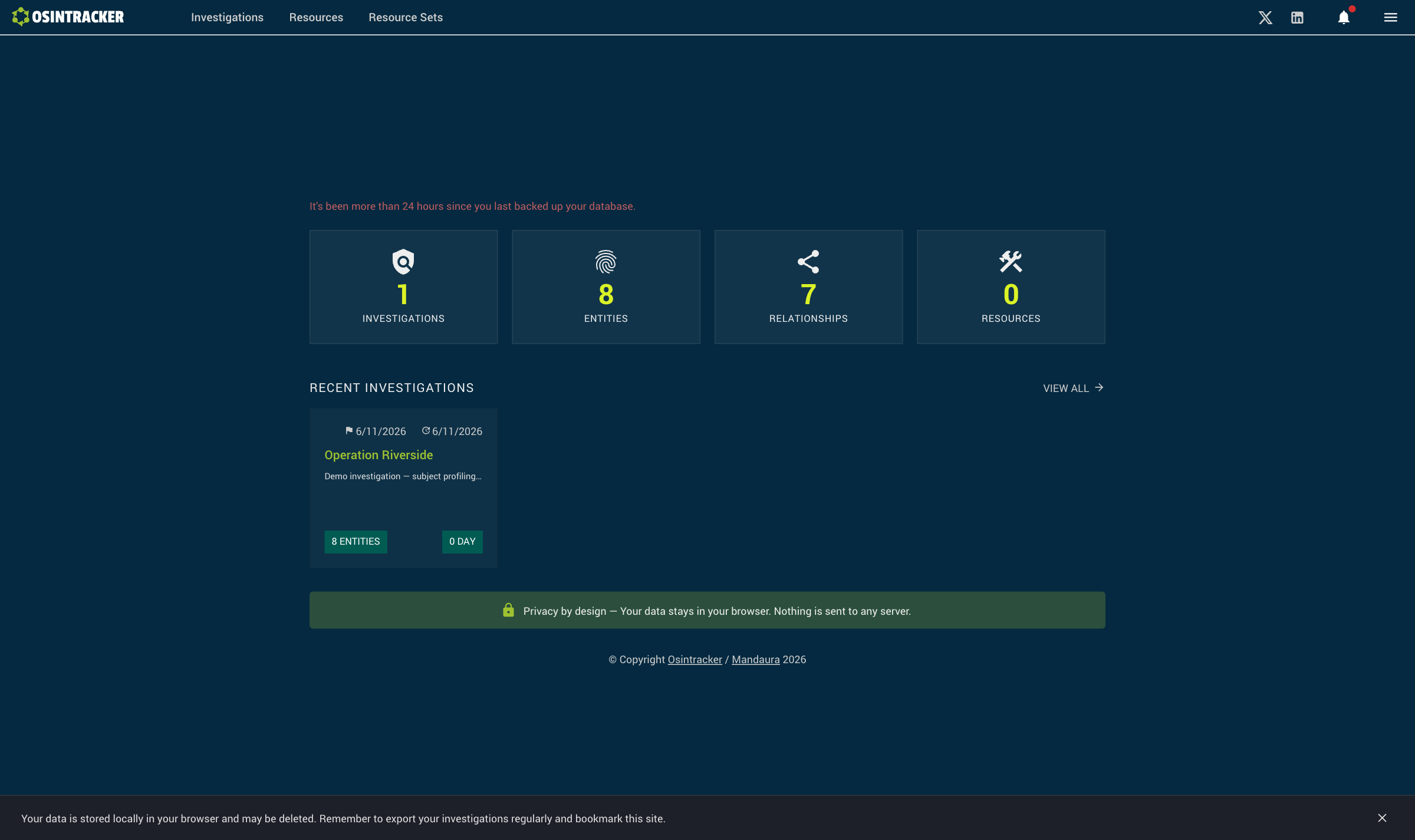
Launch the application
Open Osintracker in your browser. On first launch, the application offers to enable persistent storage so that your data is not automatically removed by the browser when it cleans up disk space.
Recommended: Accept persistent storage to protect your investigations.
The home screen
The home screen shows:
- Global statistics: total number of entities, relationships and custom resources across all your investigations
- Alert banner (conditional): if no backup has been made for more than 24 hours, a red banner invites you to back up
The navigation bar
The navigation bar at the top of the screen gives access to the main modules:
| Module | Description |
|---|---|
| Investigations | Your active cases |
| Resources | OSINT tools library |
| Resource sets | Custom groupings of resources |
It also contains:
- The backup icon (bell): a red dot if the last backup is more than 24 hours old
- The main menu (hamburger): database import/export, documentation, the types selector, keyboard shortcuts, contact and legal info, and the language switch
Create your first investigation
- Click Investigations in the navigation bar
- Click Add
- Enter a name (30 characters max) and optionally a description (150 characters max)
- Choose a resource set (default: "Default set")
- Click Add
You are redirected to your investigation's workspace. Click Add a first entity to begin.
Regular backups
Your data is stored locally in the browser. Remember to export your database regularly via the main menu → Export the database to keep a backup copy in .osintracker format.